How to add Urdu captions to a video on Mac
Direct answer: In OurScreen, record or open your video on Mac, choose Urdu from the 97 on-device caption languages, generate the captions, correct the Urdu text and timing, choose Nastaliq styling if it fits the video, then review the final export before publishing.
Urdu captions need more than accurate transcription. Right-to-left reading, line breaks, English terms, names, numbers, and the visual weight of Nastaliq text all affect whether a caption is easy to read. Treat generated captions as a first draft and plan time for a complete language and layout review.
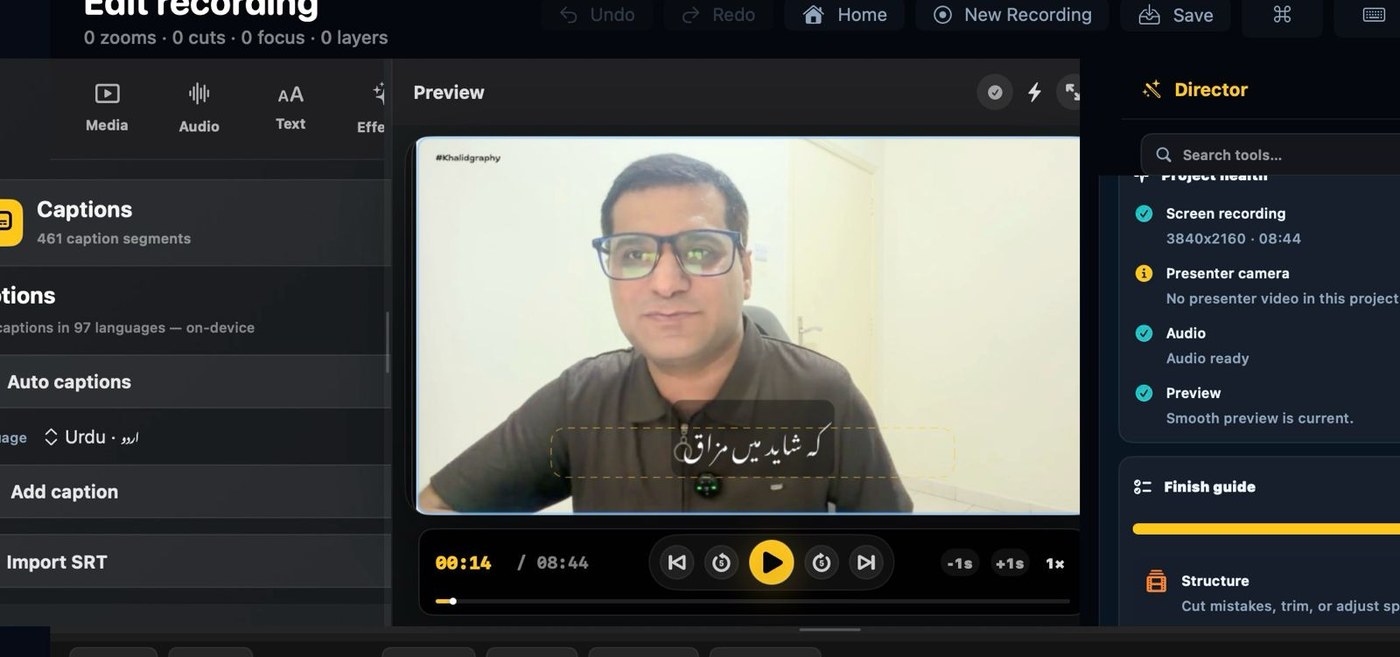
Step-by-step Urdu caption workflow
- Prepare clear speech: reduce background noise and keep the microphone close enough for a clean recording.
- Create or open the local project: record a new lesson or bring the existing video into OurScreen on your Mac.
- Choose Urdu: select Urdu as the caption language and generate the caption draft on-device.
- Review the words: correct spelling, names, numbers, English terms, and subject-specific vocabulary.
- Fix timing and line breaks: keep each caption synchronized with the speaker and avoid splitting phrases in places that slow reading.
- Choose the visual treatment: use Nastaliq styling when appropriate, then check size, contrast, and placement against every background.
- Watch the export: review the complete finished video at normal viewing size before uploading it.
What to check in Urdu captions
- Urdu spelling: read every caption rather than relying only on the audio.
- Names and terminology: verify people, places, software names, acronyms, and lesson vocabulary.
- Mixed-language phrases: check the order and readability when Urdu text includes English words or numbers.
- Line length: shorten dense captions so learners can read them before the next segment appears.
- Screen placement: keep captions away from faces, formulas, buttons, code, and demonstrations.
- Consistency: use the same spelling, punctuation approach, and caption style throughout the video.
Using Nastaliq styling well
Nastaliq gives Urdu captions a familiar visual character, but readability still comes first. Test the caption at the final output size, use sufficient contrast, and allow enough vertical room for the script. When a line feels crowded, shorten the caption or adjust the break instead of shrinking the text until it is difficult to read.
Typography references: the W3C explains why Nastaliq is important for Urdu readability and documents right-to-left flow, mixed English terms, numbers, line breaking, and other details in its Urdu Layout Requirements.
On-device generation and review-first editing
OurScreen is a native, local-first Mac app. Its caption generation runs on-device, and Smart Director can include captions in an editable first pass. Review that pass carefully: automation can reduce setup time, but the creator remains responsible for the Urdu wording, timing, and final presentation.
مختصر اردو رہنمائی
مختصر جواب: میک پر اردو کیپشن شامل کرنے کے لیے OurScreen میں نئی ویڈیو ریکارڈ کریں یا موجودہ ویڈیو کھولیں۔ کیپشن کی زبان اردو منتخب کریں اور ڈیوائس پر کیپشن بنائیں۔
ہر کیپشن کی املا، الفاظ کی ترتیب، لائن بریک اور وقت چیک کریں۔ خاص طور پر نام، اعداد، انگریزی اصطلاحات اور مضمون کے مخصوص الفاظ ضرور دیکھیں۔
ضرورت کے مطابق نستعلیق انداز منتخب کریں، پھر مکمل ویڈیو دیکھ کر ایکسپورٹ کریں۔
For broader caption options and SRT import, see the Mac screen recorder with captions. OurScreen includes a 15-day trial, followed by $25/year or the limited $59 lifetime license on the pricing page.
FAQ
How do I add Urdu captions to a video on Mac?
Create or open a local video project in OurScreen, choose Urdu as the caption language, generate captions on-device, review every caption for wording and timing, select a readable style such as Nastaliq, and check the final export.
Are OurScreen's Urdu captions generated on-device?
Yes. Caption generation happens on-device as part of OurScreen's local-first Mac workflow.
Can Urdu captions use Nastaliq styling?
Yes. OurScreen includes Nastaliq caption styling. Review line breaks, size, placement, and contrast before export.
Should generated Urdu captions be reviewed?
Yes. Check names, numbers, English terms, subject vocabulary, line breaks, reading order, and timing. Generated captions are a draft, not final text.