Mac screen recorder with system audio and microphone: what to check before recording
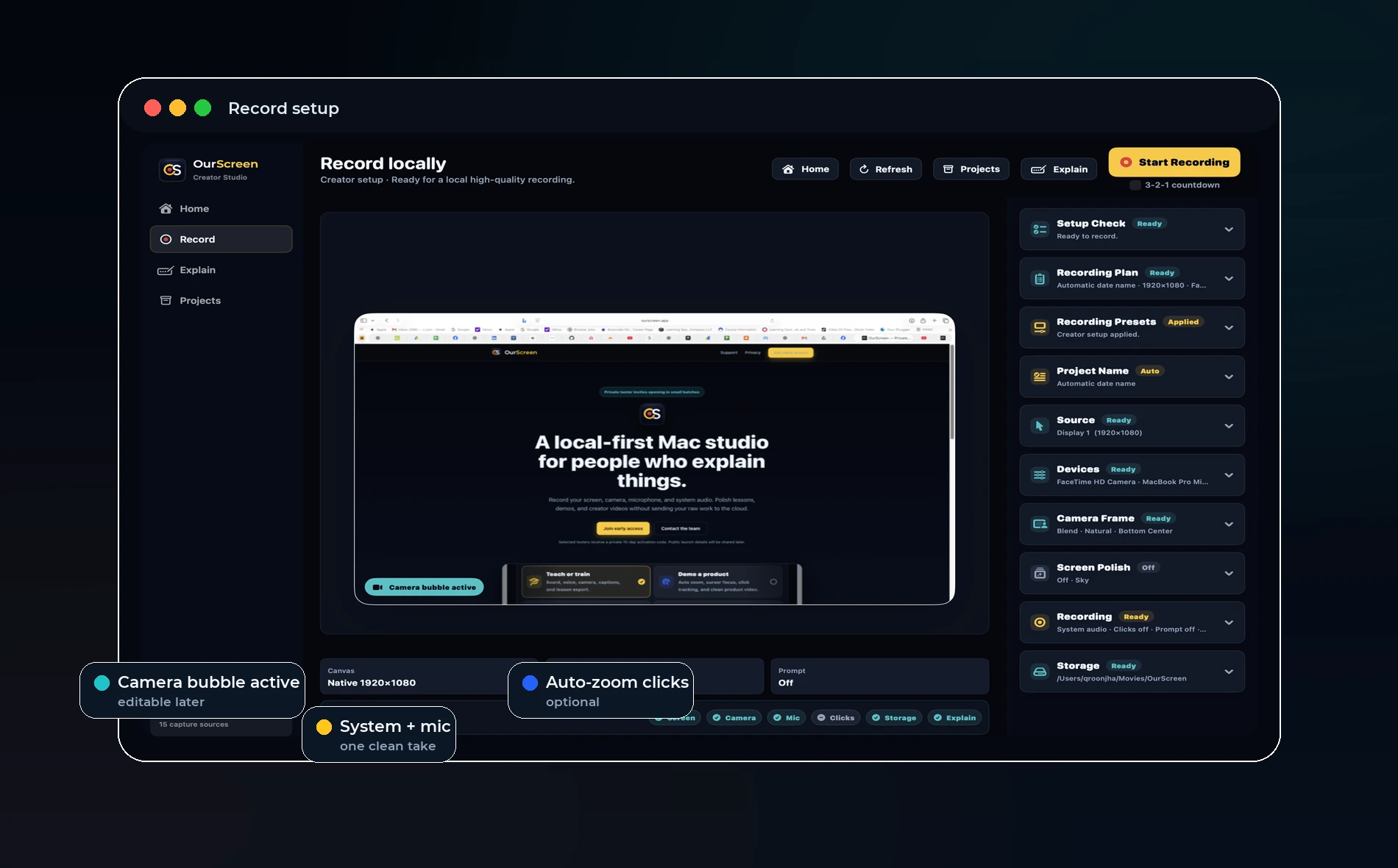
Direct answer: For teaching and product videos, the safest workflow is to record screen, microphone, and system audio together, then keep the voice track visible in the editor so you can confirm it survived before export.
Why audio checks matter
Many creators only discover audio problems after they finish a long recording. The screen looks fine, the camera is visible, but the browser audio is missing or the microphone track is too quiet. That is why system audio and microphone recording should be visible before, during, and after capture.
For a Mac teaching workflow, audio is not a side feature. Voice explains the screen. System audio captures demos, app sounds, videos, meetings, and examples. A good recorder should make both obvious.
Pre-recording checklist
Choose the screen or window first, confirm the microphone meter moves, confirm system audio is enabled if you need browser or app sound, and record a short test before a serious lesson.
If you are recording an online lesson, close noisy apps and notifications. If you are recording a product walkthrough, keep only the demo app open. A clean capture environment usually creates a cleaner edit.
What OurScreen is designed to do
OurScreen keeps this workflow simple: screen, camera, microphone, and system audio live inside one local Mac project. After recording, the editor shows the main screen recording and audio track so you can review before export.
That matters for teachers, founders, and trainers because they should not need a separate recorder, separate audio tool, and separate editor just to publish one clear video.
Common mistakes
The most common mistake is assuming permission equals a successful recording. macOS permission allows capture, but the app still needs the correct source and device selected. Another mistake is recording for ten minutes before checking a short sample.
The best habit is simple: record 15 seconds, play it, confirm voice and system sound, then start the real take.
Try OurScreen: OurScreen is a local-first Mac studio for people who explain things. Join the pricing page if you want to test the signed Mac build.
FAQ
Can a Mac record system audio by default?
Some Mac tools need a system audio capture helper or explicit system audio permission. The important part is to verify audio before the real recording.
Should voice and system audio be separate?
For advanced editing, separate tracks are helpful. For fast teaching videos, a reliable combined workflow is often enough if the editor shows the audio clearly.