Screen recorder for launching an online course on Mac
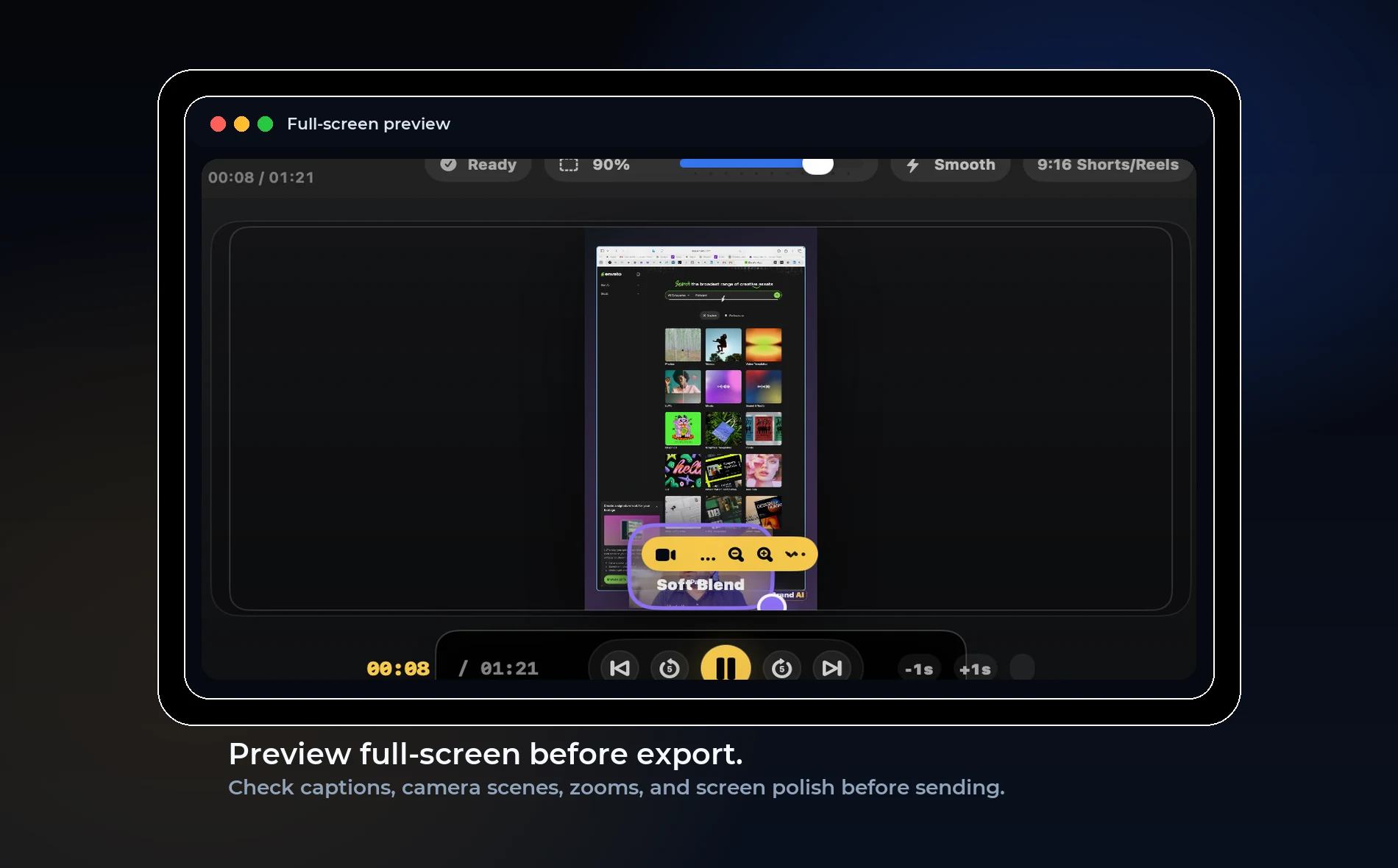
Direct answer: An online course recorder should help you record lessons consistently, edit mistakes quickly, add captions, and export in formats that work for your course platform and marketing clips.
Course launch reality
Course creators often underestimate production time. The lesson plan may be ready, but recording, editing, captions, thumbnails, and exports can slow the launch for weeks.
A good recorder reduces friction by keeping the common tasks in one place.
What course creators need
They need repeatable lesson setup, camera control, clean audio, imported slides or clips, captions, text overlays, and export presets.
They also need privacy during production. Draft lessons should stay local until the creator decides to upload.
OurScreen’s role
OurScreen is built around repeatable explanation. A creator can record screen and camera, add board moments, import supporting media, clean up the lesson, then export for course platforms or social promotion.
The app’s local-first direction is useful for creators who are still preparing paid course material.
Best launch workflow
Create one template setup, record lessons in batches, review audio immediately, cut mistakes, add captions, export master files, then create shorter promotional clips from the strongest moments.
Try OurScreen: OurScreen is a local-first Mac studio for people who explain things. Join the pricing page if you want to test the signed Mac build.
FAQ
Do I need a separate video editor for a course?
For advanced cinematic edits, yes. For most screen-based lessons, a focused recorder-editor is faster.
Should course videos include camera?
Often yes, but the camera should be adjustable so it does not hide the lesson content.